


日本政府は国内旅行者に割引を提供する「Go To トラベルキャンペーン」を開始しました。 この状況下の旅行について人々はどう感じているのだろうと、Twitterの投稿内容を分析して、国内の旅行状況を捉えてみたいと思います。
今回はTwitter分析として、MAGELLAN BLOCKSとデータ可視化ツール「Tableau」を使って簡単にできる方法を紹介します。 MAGELLAN BLOCKSとTableauは初心者も使えるツールで、高度なプログラミング知識は必要ありません!
TwitterデータでCovid-19時代の状況を理解する、3つのステップ
まず、MAGELLAN BLOCKSを使って、Twitterのような文章データを収集、解析します。そして、その分析結果をTableauで表現します。Tableauは、使いやすいインターフェーイスで簡単にデータをビジュアル化できるデータ可視化ツールです。トレンドを理解して、データから新しいインサイトを引き出しましょう。

- Twitter API入手
- キーワードを決定し、MAGELLAN BLOCKSのフローデザイナーでフローを構築する
- Tableauで可視化する
では、始めましょう!
ステップ 1 – Twitter APIを入手
Twitter developer Platformにサインイン/サインアップをしましょう。
このアカウントをお持ちでない場合は、サインアップ方法に関して記載されている次のURLをご確認ください。https://developer.twitter.com/en/apply-for-access
アカウントをお持ちの方は、次の手順で進んでください。
- サインイン
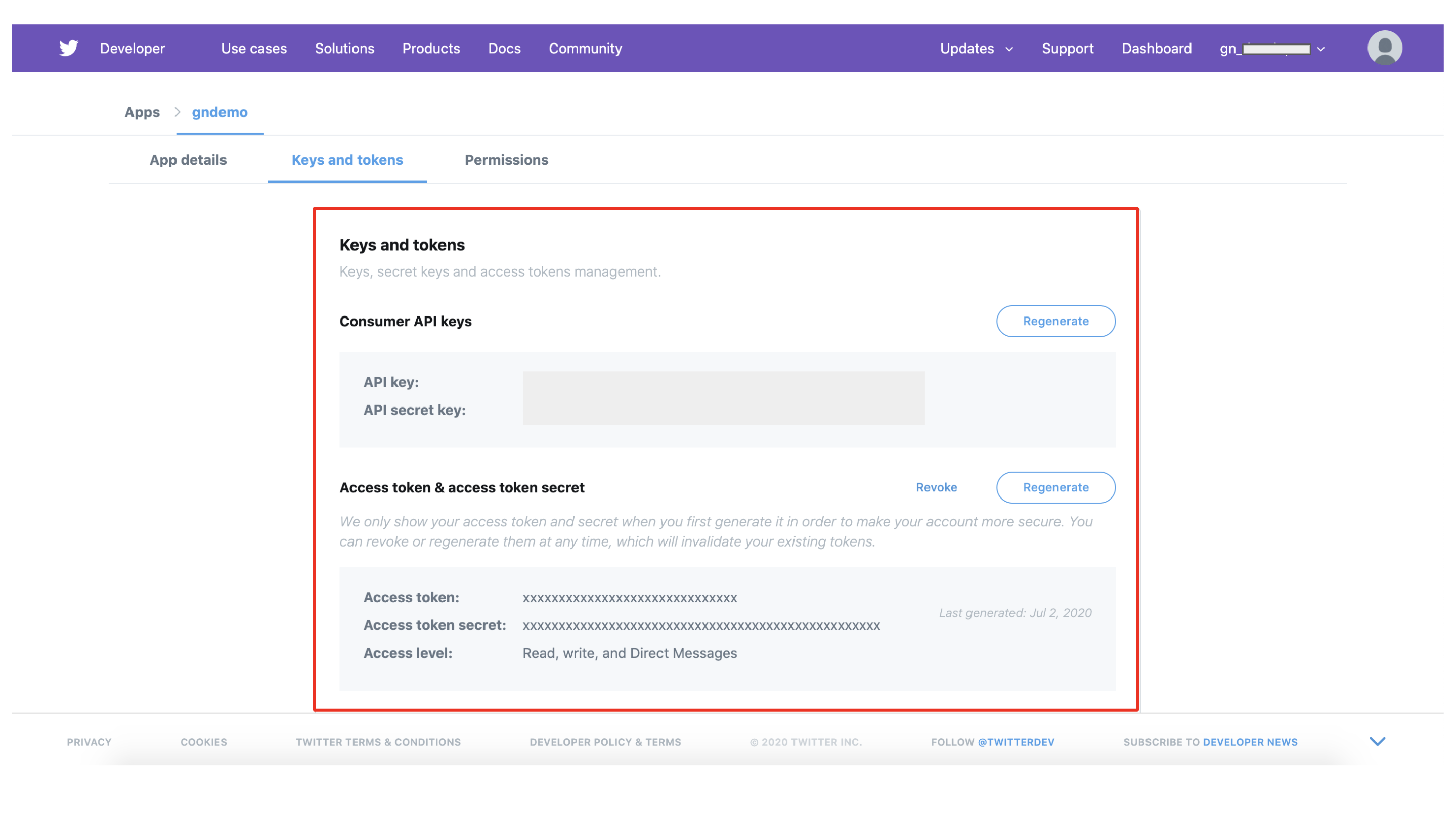
- apps > [your app details] > keys and tokens
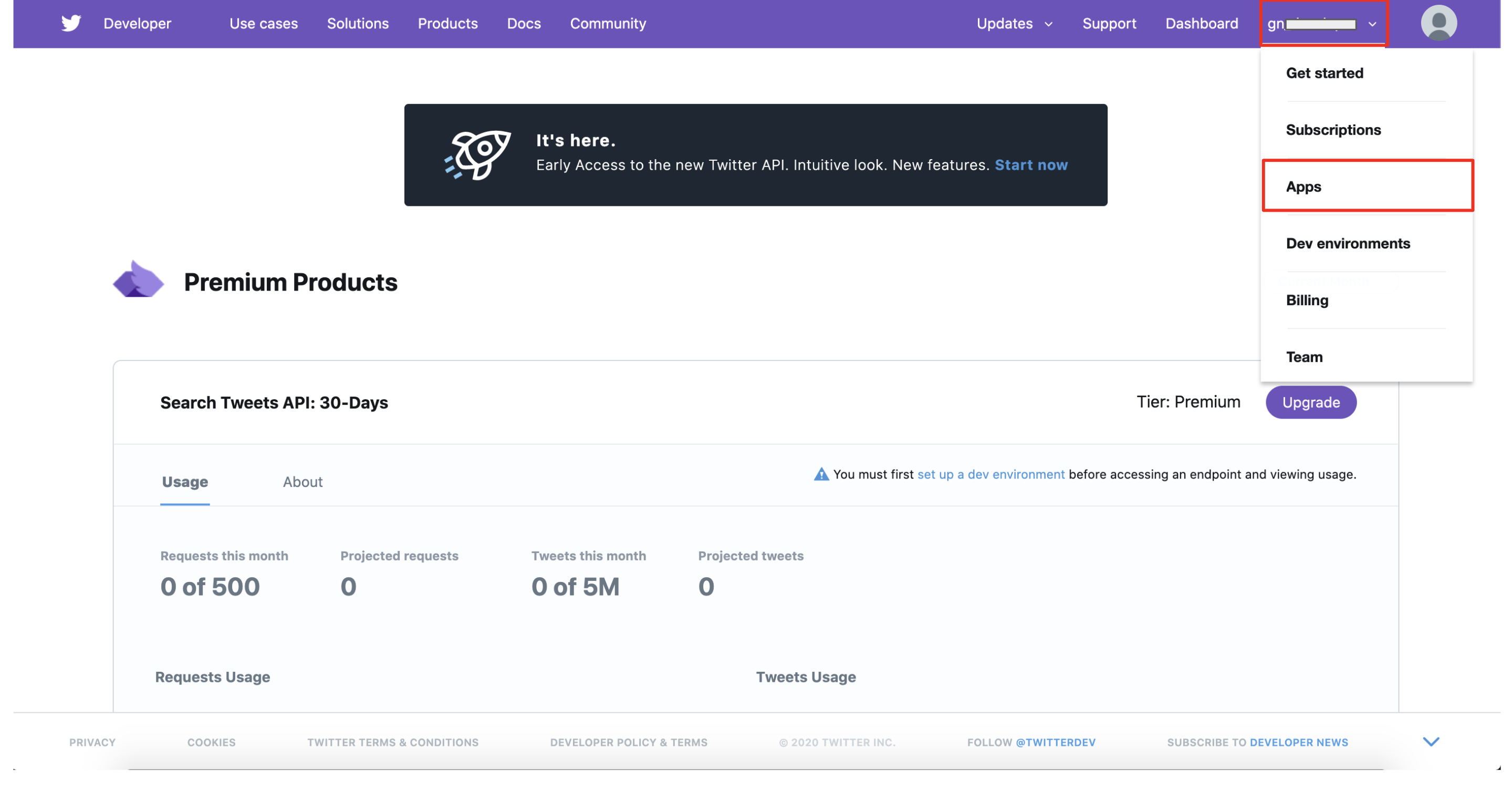

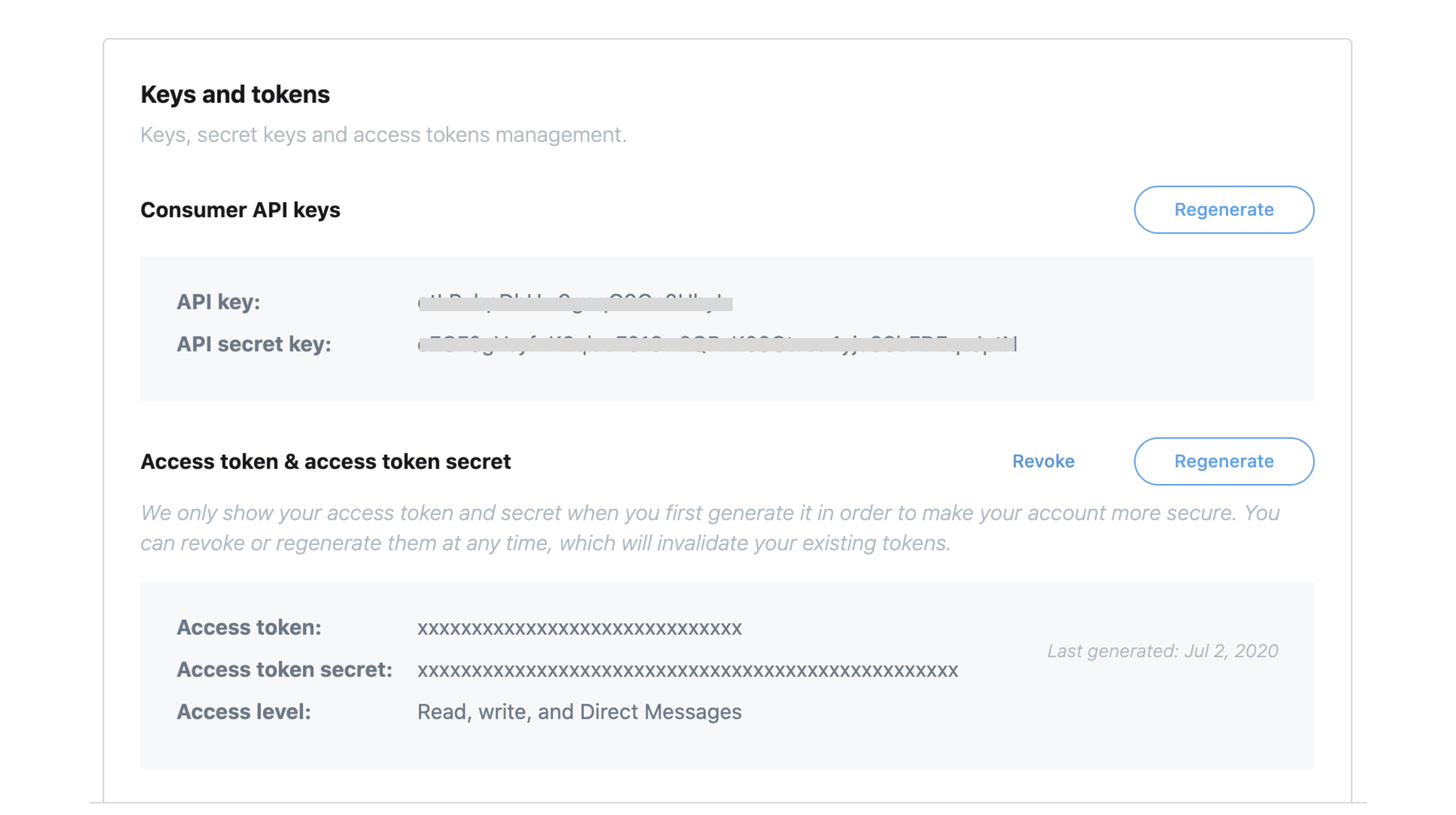
以下の赤枠の情報は、後続の作業で必要になりますので、メモしておきます。
ステップ 2 – キーワードを決定し、MAGELLAN BLOCKSのフローデザイナーでデータを取得
Twitter分析で使用するキーワードとして、ここでは次のものを使用します。
– GoToキャンペーン
– GoToトラベル
では、MAGELLAN BLOCKSでフローを作ります。
一連のフローをつくる
フローデザイナーは、ブロックを配置するだけの簡単操作で、さまざまなデータを処理するシステムをつくれるサービスです。まずは、新しいフローデザイナーを作成します。
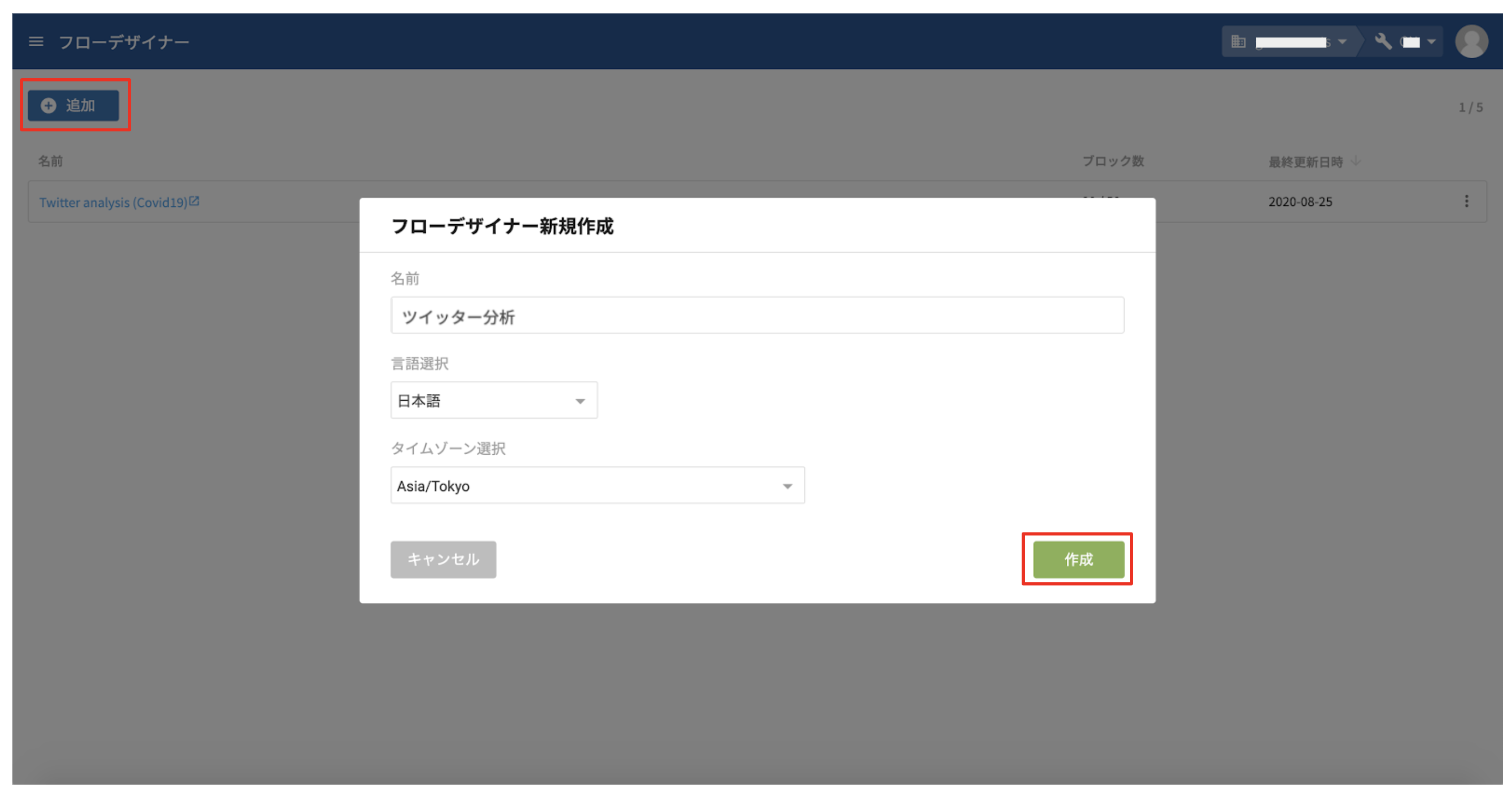
次に、ブロックを組み合わせてフローを構築しましょう。
本記事では、左側ブロックリストの 「SNS」と「文書」 が対象となります。その中から2つのブロック、「ツイッター検索」ブロックと「単語に分割」ブロックを使用します。※ このメニューのご利用には別途お手続きが必要となります。
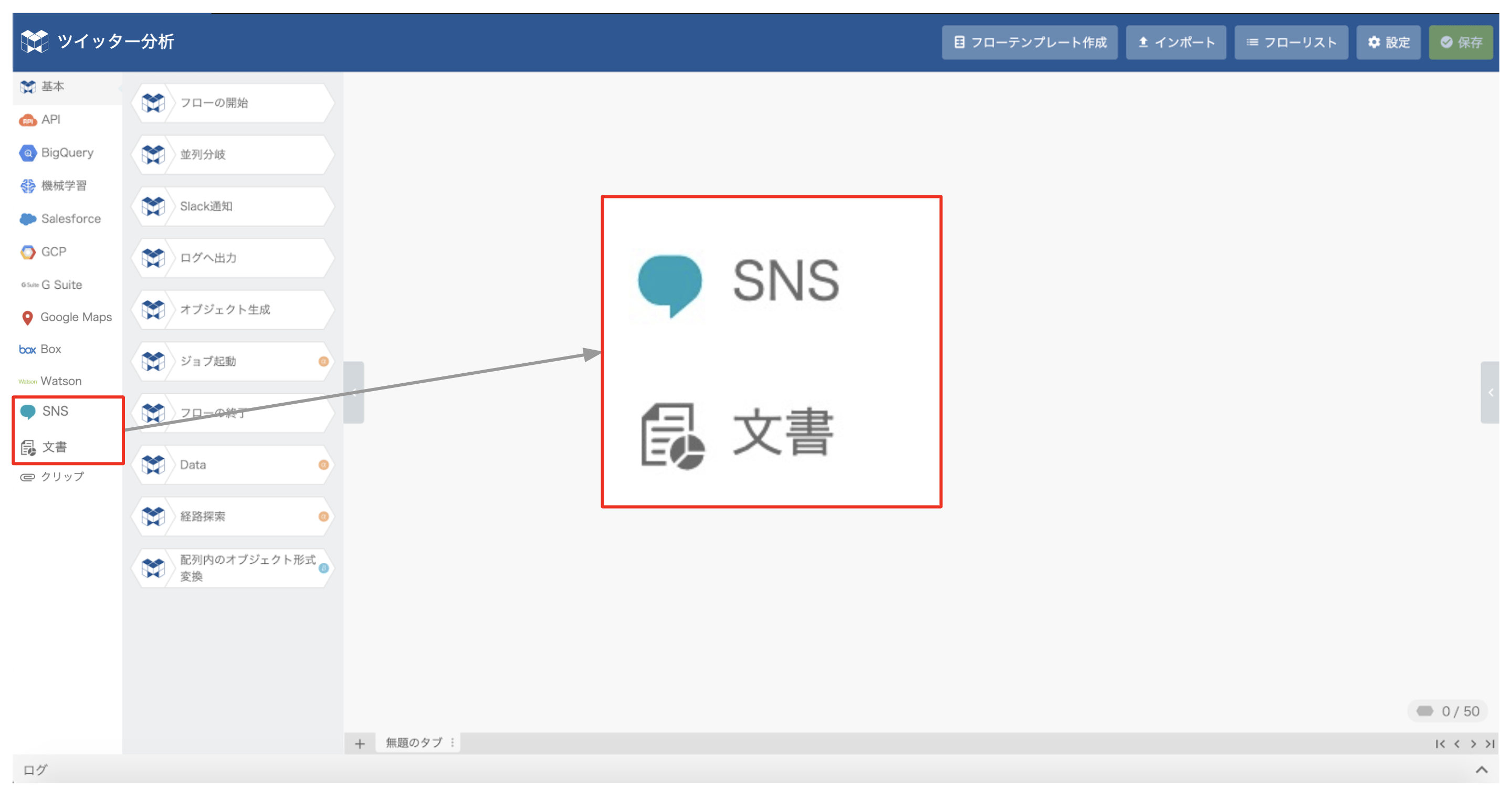
一連のフローとしては次の7つのブロックを準備します。
フローの構築は、ブロックを左側のブロックリストから中央の編集パネルにドラッグ&ドロップするだけです。とても簡単でプログラミングは必要ありません! 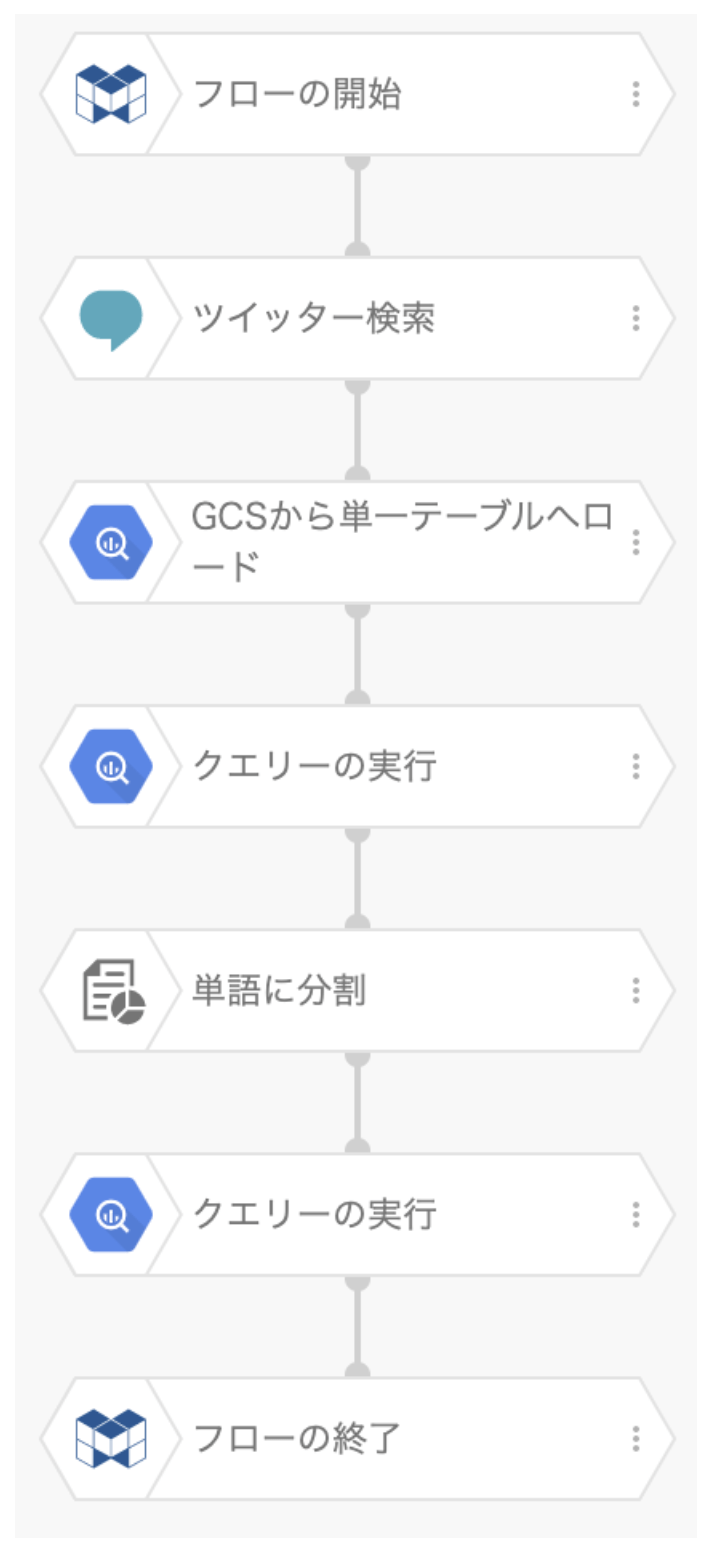
各ブロックの動きを設定する
ここからは、構築したフローのブロック一つずつに対して、動作を設定していきます。編集パネル上の対象ブロックをクリックすると、右側にプロパティパネルが表示されます。
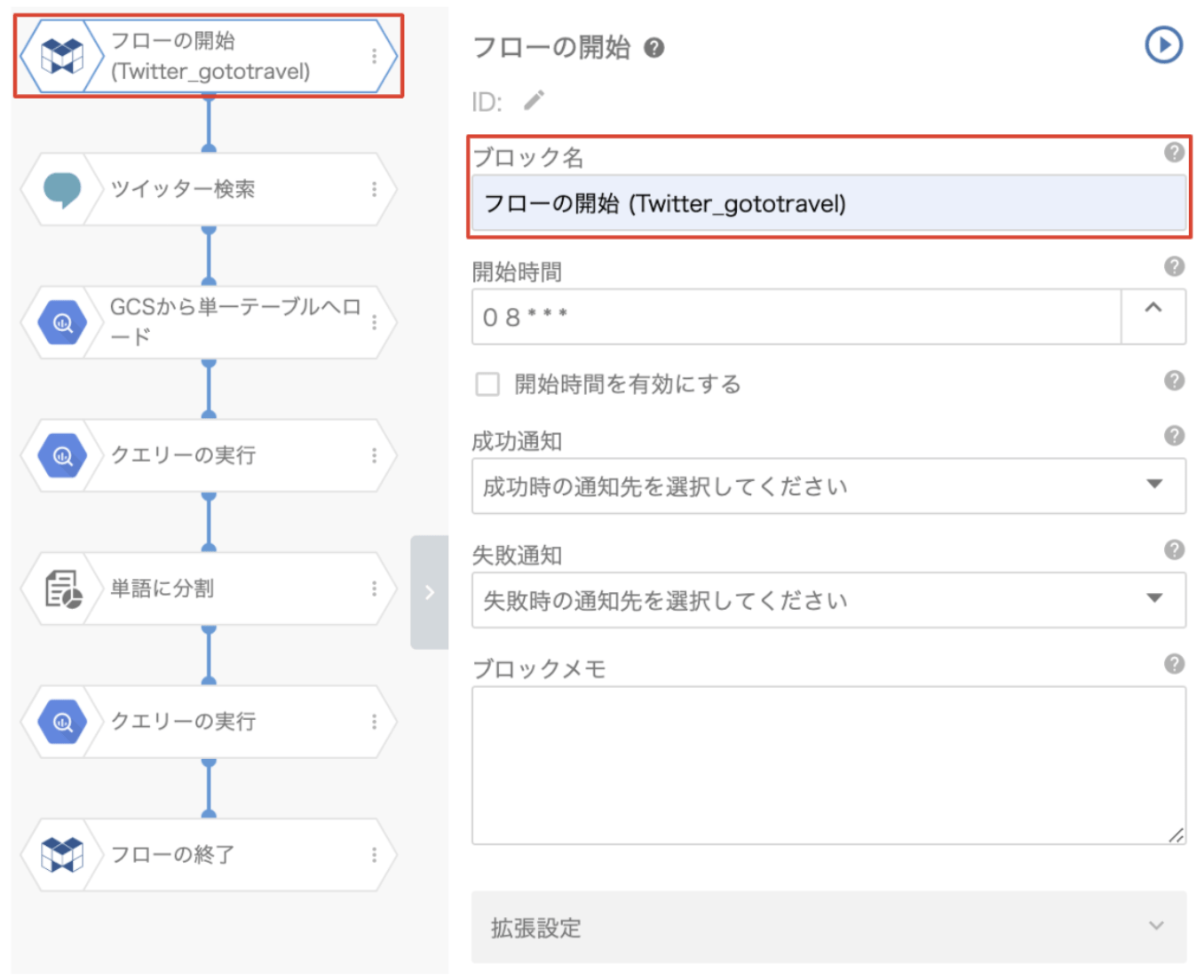
①「フローの開始」ブロック
ブロックの名前を変更しましょう。後から見て、これがどのような処理をするフローなのか、一目でわかるような名称にすると便利です。その他の項目は、今回は変更しません。
②「ツイッター検索」ブロック
前のステップ1の最後にメモしておいたTwitter API(keys and tokensです)の情報はありますか? それを、「ツイッター検索」ブロックで設定していきます。
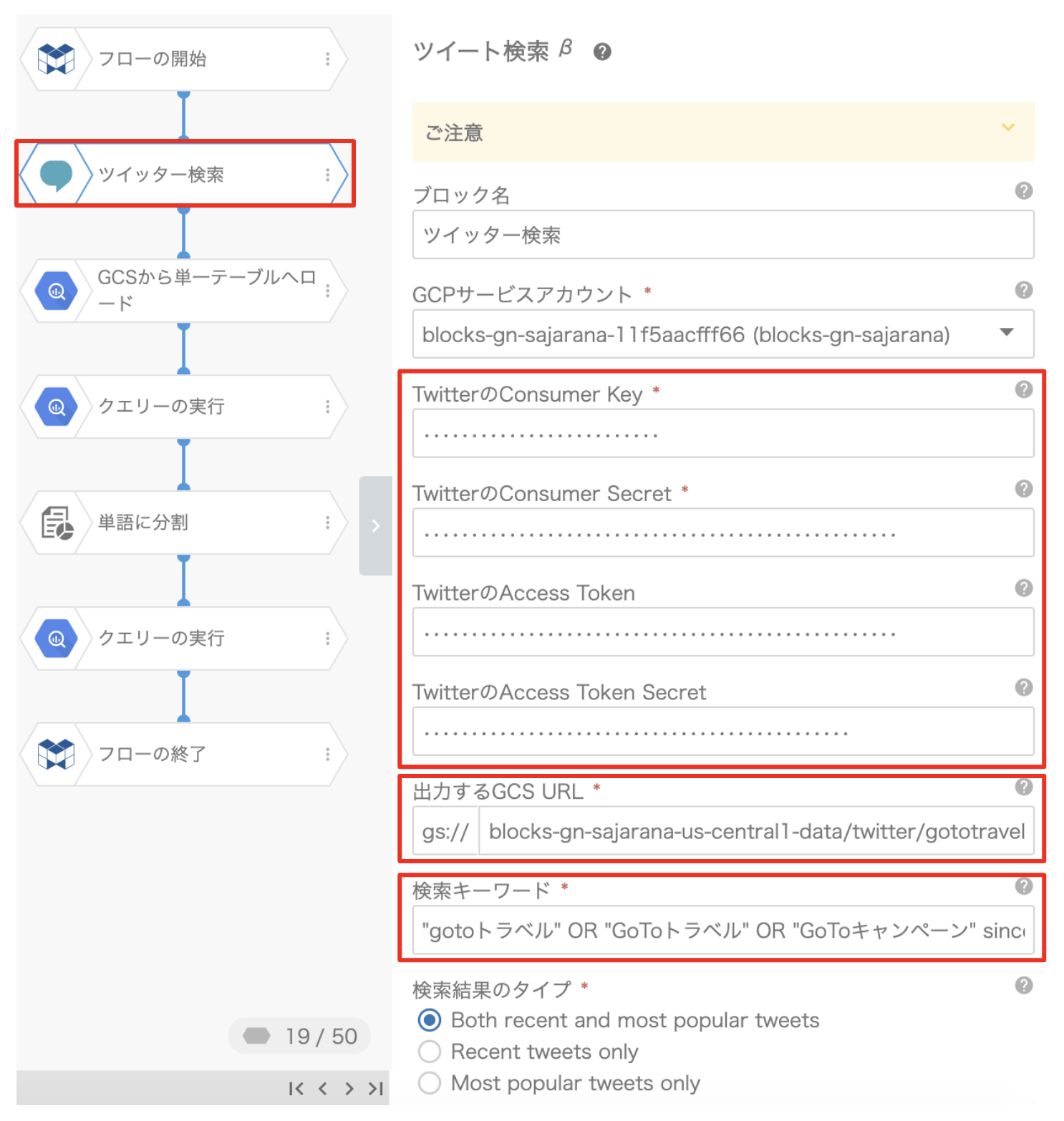
設定する項目の内容をまとめると次のとおりです。
- TwitterのConsumer Key => API key
- TwitterのConsumer Secret => API secret key
- TwitterのAccess Token => Access token
- TwitterのAccess Token Secret => Access token secret
- 出力するGCS URL => gs://ファイルの場所
今回作成したフローの例でいうと下記の内容となります。
gs://blocks-gn-sajarana-us-central1-data/twitter/gototravel.json - 検索キーワード => 使用するTwitterのキーワード
今回は、下記の内容で設定します。"gotoトラベル" OR "GoToトラベル" OR "GoToキャンペーン" since:2020-08-16_00:00:00_JST until: 2020-08-24_23:59:59_JST
*Twitter APIの詳細については、https://developer.twitter.com/en/docs/twitter-api/v1/tweets/search/api-reference/get-search-tweets をご確認ください。また、無料APIをご利用の場合、検索日から約1週間分のツイートしか検索できませんのでご注意ください(有料APIを利用するとより長期のデータを検索することができます)。
③「GCSから単一テーブルへロード」ブロック
このブロックは、検索結果をBigQueryにエクスポートする処理を行うものです。
まず、投入データのファイルGCS URL(「Twitter検索」ブロックで設定したGCS URLと同じもの)と、投入先のデータセット、投入先のテーブルの項目を設定します。
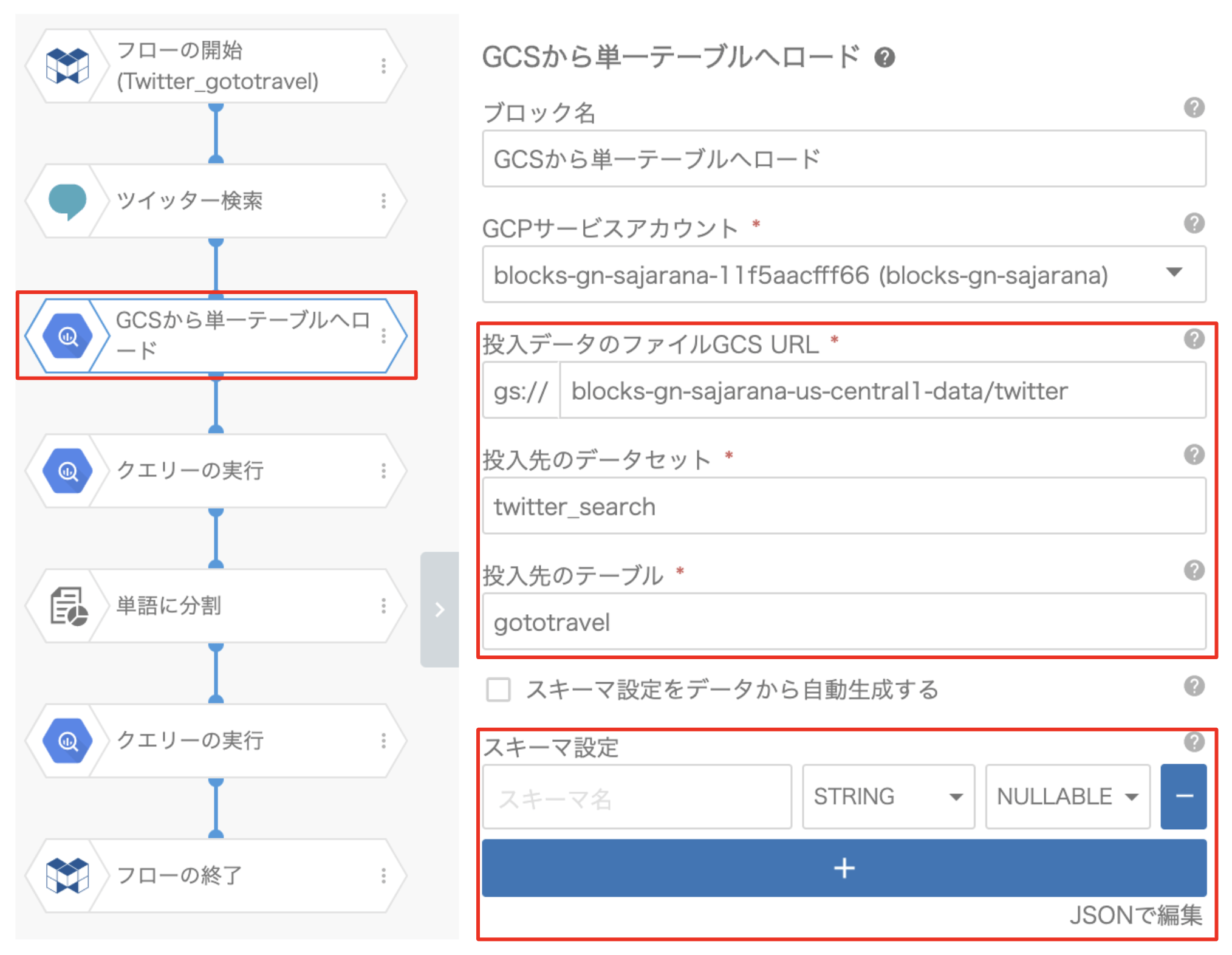
次に、スキーマ設定の項目です。
「JSONで編集」をクリックし、以下の「JSONスキーマを見る」の内容をコピーして貼り付けます。
JSONスキーマを見る
[{"name": "created_at","type": "STRING","mode": "NULLABLE"},{"name": "id","type": "INTEGER","mode": "NULLABLE"},{"name": "id_str","type": "STRING","mode": "NULLABLE"},{"name": "text","type": "STRING","mode": "NULLABLE"},{"name": "source","type": "STRING","mode": "NULLABLE"},{"name": "truncated","type": "BOOLEAN","mode": "NULLABLE"},{"name": "in_reply_to_status_id","type": "INTEGER","mode": "NULLABLE"},{"name": "in_reply_to_status_id_str","type": "STRING","mode": "NULLABLE"},{"name": "in_reply_to_user_id","type": "INTEGER","mode": "NULLABLE"},{"name": "in_reply_to_user_id_str","type": "STRING","mode": "NULLABLE"},{"name": "in_reply_to_screen_name","type": "STRING","mode": "NULLABLE"},{"name": "quoted_status_id","type": "INTEGER","mode": "NULLABLE"},{"name": "quoted_status_id_str","type": "STRING","mode": "NULLABLE"},{"name": "is_quote_status","type": "BOOLEAN","mode": "NULLABLE"},{"name": "retweet_count","type": "INTEGER","mode": "NULLABLE"},{"name": "favorite_count","type": "INTEGER","mode": "NULLABLE"},{"name": "favorited","type": "BOOLEAN","mode": "NULLABLE"},{"name": "retweeted","type": "BOOLEAN","mode": "NULLABLE"},{"name": "lang","type": "STRING","mode": "NULLABLE"},{"name": "coordinates","type": "RECORD","mode": "NULLABLE","fields": [{"name": "coordinates","type": "STRING","mode": "REPEATED"},{"name": "type","type": "STRING","mode": "NULLABLE"}]},{"name": "user","type": "RECORD","mode": "NULLABLE","fields": [{"name": "id","type": "INTEGER","mode": "NULLABLE"},{"name": "id_str","type": "STRING","mode": "NULLABLE"},{"name": "name","type": "STRING","mode": "NULLABLE"},{"name": "screen_name","type": "STRING","mode": "NULLABLE"},{"name": "location","type": "STRING","mode": "NULLABLE"},{"name": "url","type": "STRING","mode": "NULLABLE"},{"name": "description","type": "STRING","mode": "NULLABLE"},{"name": "protected","type": "BOOLEAN","mode": "NULLABLE"},{"name": "verified","type": "BOOLEAN","mode": "NULLABLE"},{"name": "followers_count","type": "INTEGER","mode": "NULLABLE"},{"name": "friends_count","type": "INTEGER","mode": "NULLABLE"},{"name": "listed_count","type": "INTEGER","mode": "NULLABLE"},{"name": "favourites_count","type": "INTEGER","mode": "NULLABLE"},{"name": "statuses_count","type": "INTEGER","mode": "NULLABLE"},{"name": "lang","type": "STRING","mode": "NULLABLE"}]},{"name": "place","type": "RECORD","mode": "NULLABLE","fields": [{"name": "id","type": "INTEGER","mode": "NULLABLE"},{"name": "url","type": "STRING","mode": "NULLABLE"},{"name": "place_type","type": "STRING","mode": "NULLABLE"},{"name": "name","type": "STRING","mode": "NULLABLE"},{"name": "full_name","type": "STRING","mode": "NULLABLE"},{"name": "country_code","type": "STRING","mode": "NULLABLE"},{"name": "country","type": "STRING","mode": "NULLABLE"},{"name": "bounding_box","type": "RECORD","mode": "NULLABLE","fields": [{"name": "coordinates","type": "STRING","mode": "REPEATED"},{"name": "type","type": "STRING","mode": "NULLABLE"}]}]},{"name": "quoted_status","type": "RECORD","mode": "NULLABLE","fields": [{"name": "created_at","type": "STRING","mode": "NULLABLE"},{"name": "id","type": "INTEGER","mode": "NULLABLE"},{"name": "id_str","type": "STRING","mode": "NULLABLE"},{"name": "text","type": "STRING","mode": "NULLABLE"},{"name": "source","type": "STRING","mode": "NULLABLE"},{"name": "truncated","type": "BOOLEAN","mode": "NULLABLE"},{"name": "in_reply_to_status_id","type": "INTEGER","mode": "NULLABLE"},{"name": "in_reply_to_status_id_str","type": "STRING","mode": "NULLABLE"},{"name": "in_reply_to_user_id","type": "INTEGER","mode": "NULLABLE"},{"name": "in_reply_to_user_id_str","type": "STRING","mode": "NULLABLE"},{"name": "in_reply_to_screen_name","type": "STRING","mode": "NULLABLE"},{"name": "quoted_status_id","type": "INTEGER","mode": "NULLABLE"},{"name": "quoted_status_id_str","type": "STRING","mode": "NULLABLE"},{"name": "is_quote_status","type": "BOOLEAN","mode": "NULLABLE"},{"name": "retweet_count","type": "INTEGER","mode": "NULLABLE"},{"name": "favorite_count","type": "INTEGER","mode": "NULLABLE"},{"name": "favorited","type": "BOOLEAN","mode": "NULLABLE"},{"name": "retweeted","type": "BOOLEAN","mode": "NULLABLE"},{"name": "lang","type": "STRING","mode": "NULLABLE"},{"name": "user","type": "RECORD","mode": "NULLABLE","fields": [{"name": "id","type": "INTEGER","mode": "NULLABLE"},{"name": "id_str","type": "STRING","mode": "NULLABLE"},{"name": "name","type": "STRING","mode": "NULLABLE"},{"name": "screen_name","type": "STRING","mode": "NULLABLE"}]}]},{"name": "retweeted_status","type": "RECORD","mode": "NULLABLE","fields": [{"name": "created_at","type": "STRING","mode": "NULLABLE"},{"name": "id","type": "INTEGER","mode": "NULLABLE"},{"name": "id_str","type": "STRING","mode": "NULLABLE"},{"name": "text","type": "STRING","mode": "NULLABLE"},{"name": "source","type": "STRING","mode": "NULLABLE"},{"name": "truncated","type": "BOOLEAN","mode": "NULLABLE"},{"name": "in_reply_to_status_id","type": "INTEGER","mode": "NULLABLE"},{"name": "in_reply_to_status_id_str","type": "STRING","mode": "NULLABLE"},{"name": "in_reply_to_user_id","type": "INTEGER","mode": "NULLABLE"},{"name": "in_reply_to_user_id_str","type": "STRING","mode": "NULLABLE"},{"name": "in_reply_to_screen_name","type": "STRING","mode": "NULLABLE"},{"name": "quoted_status_id","type": "INTEGER","mode": "NULLABLE"},{"name": "quoted_status_id_str","type": "STRING","mode": "NULLABLE"},{"name": "is_quote_status","type": "BOOLEAN","mode": "NULLABLE"},{"name": "retweet_count","type": "INTEGER","mode": "NULLABLE"},{"name": "favorite_count","type": "INTEGER","mode": "NULLABLE"},{"name": "favorited","type": "BOOLEAN","mode": "NULLABLE"},{"name": "retweeted","type": "BOOLEAN","mode": "NULLABLE"},{"name": "lang","type": "STRING","mode": "NULLABLE"},{"name": "user","type": "RECORD","mode": "NULLABLE","fields": [{"name": "id","type": "INTEGER","mode": "NULLABLE"},{"name": "id_str","type": "STRING","mode": "NULLABLE"},{"name": "name","type": "STRING","mode": "NULLABLE"},{"name": "screen_name","type": "STRING","mode": "NULLABLE"}]}]}]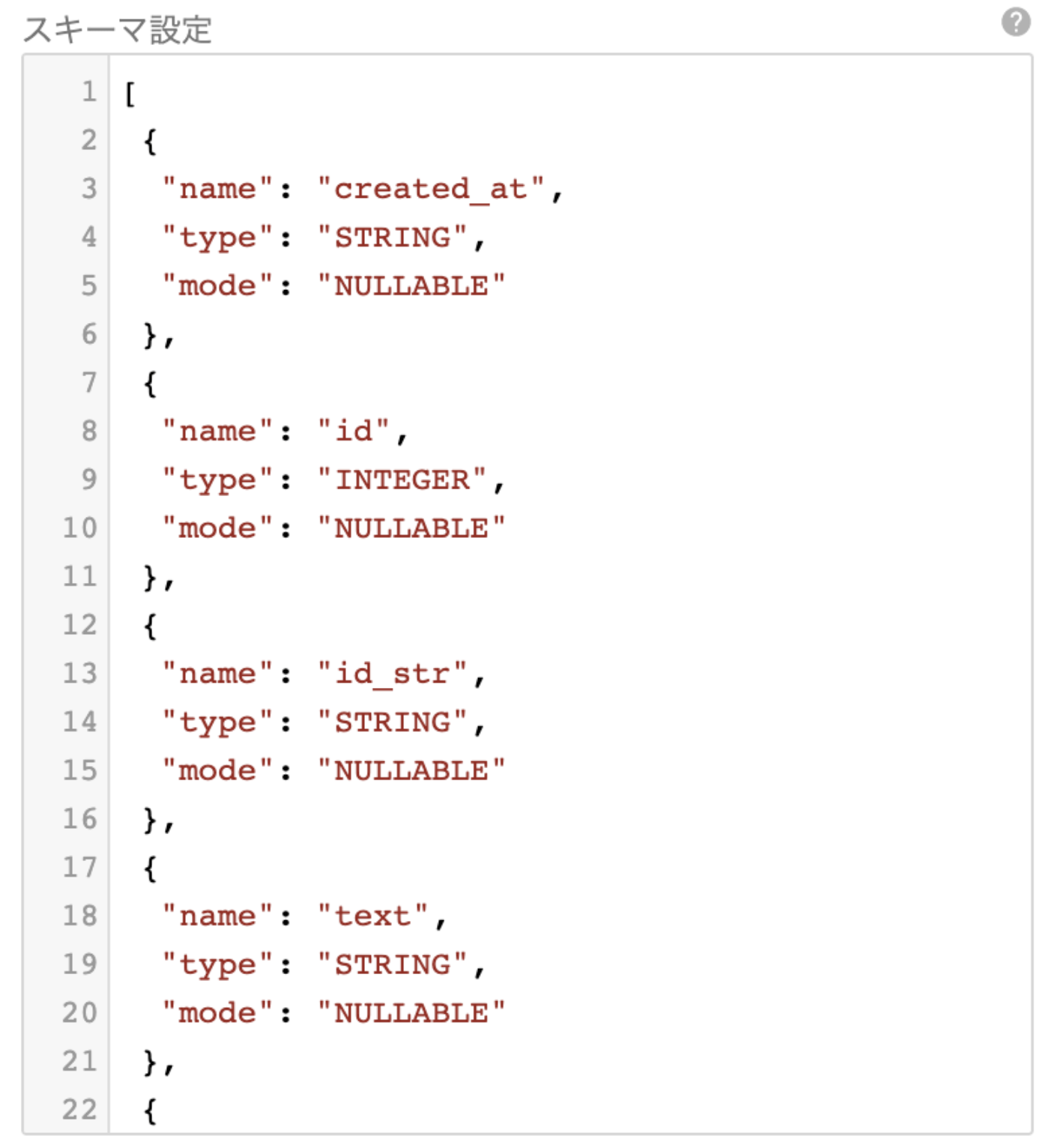
④「クエリーの実行」ブロック
ここでは、Twitter APIで取得したデータを、Tableauで使用できるように整形します。今回は、日付と時刻の形式を整えます。以下の「クエリーを見る」をクリックして、ご参照ください。
クエリーの実行:BigQuery のクエリーを実行するブロックです。
クエリーを見る
selectcast(FORMAT_TIMESTAMP('%%Y-%%m-%%d', PARSE_TIMESTAMP('%%a %%b %%e %%T %%z %%Y',created_at,'UTC'), 'Asia/Tokyo') as date) as tweet_dt, cast(FORMAT_TIMESTAMP('%%Y-%%m-%%d %%H:%%M:%%S', PARSE_TIMESTAMP('%%a %%b %%e %%T %%z %%Y',created_at,'UTC'), 'Asia/Tokyo') as datetime) as tweet_dttm, retweeted_status.lang as retweeted_status_lang, retweeted_status.retweeted as retweeted_status_retweeted, retweeted_status.favorited as retweeted_status_favorited, retweeted_status.favorite_count as retweeted_status_favorite_count, retweeted_status.retweet_count as retweeted_status_retweet_count, cast(retweeted_status.quoted_status_id_str as string) as retweeted_status_quoted_status_id_str, retweeted_status.quoted_status_id as retweeted_status_quoted_status_id, retweeted_status.text as retweeted_status_text, retweeted_status.in_reply_to_screen_name as retweeted_status_in_reply_to_screen_name, cast(retweeted_status.in_reply_to_user_id_str as string) as retweeted_status_in_reply_to_user_id_str, retweeted_status.in_reply_to_user_id as retweeted_status_in_reply_to_user_id, retweeted_status.in_reply_to_status_id as retweeted_status_in_reply_to_status_id, retweeted_status.user.name as retweeted_status_user_name, retweeted_status.user.screen_name as retweeted_status_user_screen_name, cast(retweeted_status.user.id_str as string) as retweeted_status_user_id_str, retweeted_status.user.id as retweeted_status_user_id, retweeted_status.truncated as retweeted_status_truncated, cast(retweeted_status.id_str as string) as retweeted_status_id_str, retweeted_status.id as retweeted_status_id, retweeted_status.is_quote_status as retweeted_status_is_quote_status, retweeted_status.source as retweeted_status_source, cast(retweeted_status.in_reply_to_status_id_str as string) as retweeted_status_in_reply_to_status_id_str, retweeted_status.created_at as retweeted_status_created_at, in_reply_to_screen_name as in_reply_to_screen_name, favorite_count as favorite_count, quoted_status.lang as quoted_status_lang, quoted_status.retweeted as quoted_status_retweeted, quoted_status.favorited as quoted_status_favorited, quoted_status.favorite_count as quoted_status_favorite_count, quoted_status.retweet_count as quoted_status_retweet_count, cast( quoted_status.quoted_status_id_str as string) as quoted_status_quoted_status_id_str, quoted_status.quoted_status_id as quoted_status_quoted_status_id, quoted_status.text as quoted_status_text, quoted_status.in_reply_to_screen_name as quoted_status_in_reply_to_screen_name, cast(quoted_status.in_reply_to_user_id_str as string) as quoted_status_in_reply_to_user_id_str, quoted_status.in_reply_to_user_id as quoted_status_in_reply_to_user_id, quoted_status.in_reply_to_status_id as quoted_status_in_reply_to_status_id, quoted_status.user.name as quoted_status_user_name, quoted_status.user.screen_name as quoted_status_user_screen_name, cast(quoted_status.user.id_str as string) as quoted_status_user_id_str, quoted_status.user.id as quoted_status_user_id, quoted_status.truncated as quoted_status_truncated, cast(quoted_status.id_str as string) as quoted_status_id_str, quoted_status.id as quoted_status_id, quoted_status.is_quote_status as quoted_status_is_quote_status, quoted_status.source as quoted_status_source, cast(quoted_status.in_reply_to_status_id_str as string) as quoted_status_in_reply_to_status_id_str, quoted_status.created_at as quoted_status_created_at, place.bounding_box.type as place_bounding_box_type, place.country_code as place_country_code, place.url as place_url, place.name as place_name, place.place_type as place_place_type, place.country as place_country, place.full_name as place_full_name, place.id as place_id, lang as lang, retweeted as retweeted, user.lang as user_lang, user.statuses_count as user_statuses_count, user.favourites_count as user_favourites_count, user.listed_count as user_listed_count, user.screen_name as user_screen_name, user.verified as user_verified, user.followers_count as user_followers_count, user.protected as user_protected, user.description as user_description, user.url as user_url, user.name as user_name, user.location as user_location, user.friends_count as user_friends_count, cast(user.id_str as string) as user_id_str, user.id as user_id, favorited as favorited, retweet_count as retweet_count, coordinates.type as coordinates_type, coordinates.coordinates as coordinates_coordinates, text as text, in_reply_to_user_id_str as in_reply_to_user_id_str, in_reply_to_user_id as in_reply_to_user_id, in_reply_to_status_id as in_reply_to_status_id, truncated as truncated, id_str as id_str, id as id, is_quote_status as is_quote_status, source as source, in_reply_to_status_id_str as in_reply_to_status_id_str, created_at as created_atfrom twitter_search.gototravelwhere lang = 'ja'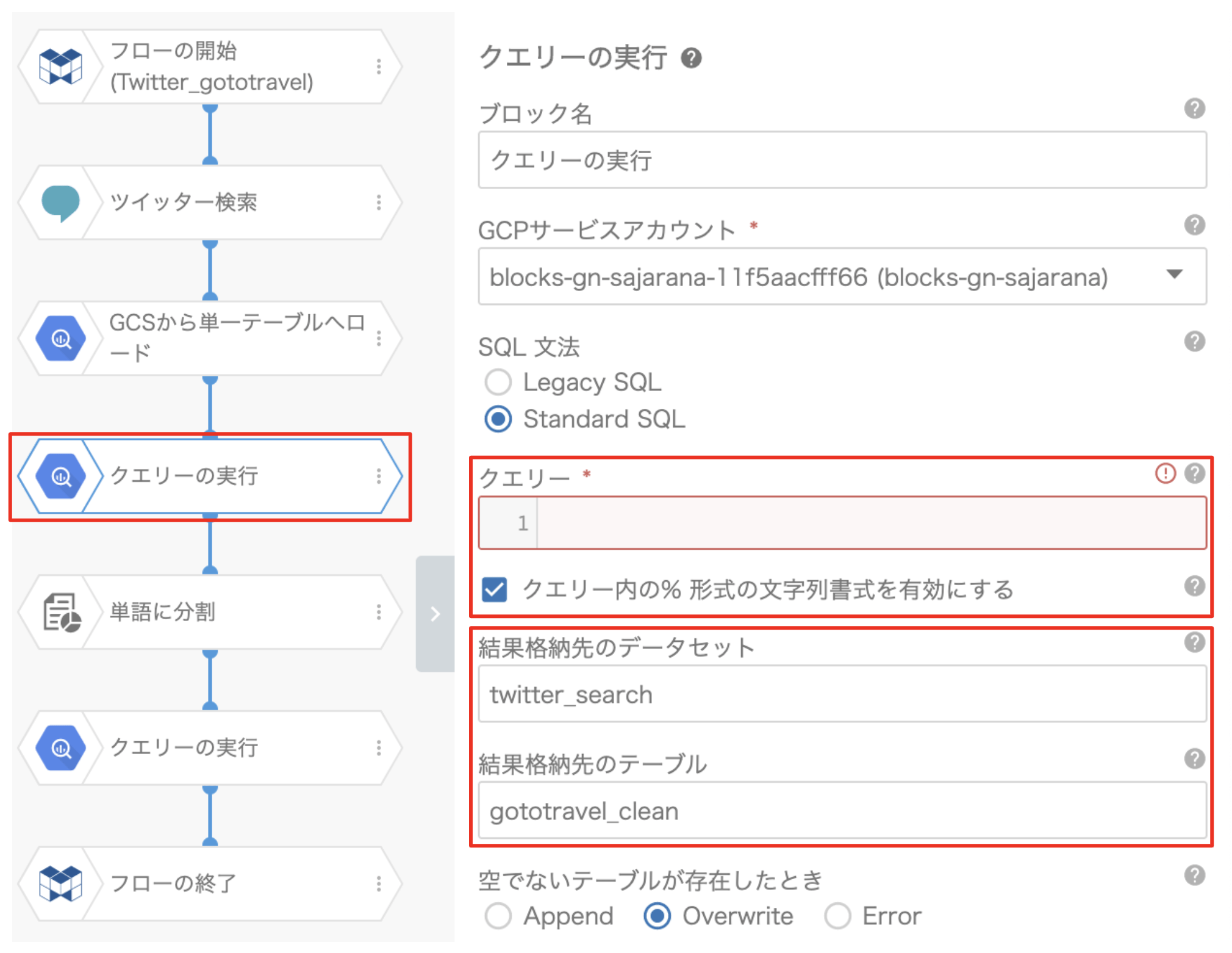
⑤「単語に分割」ブロック
キーワードに関連したツイートを取得しましたが、その数が何万件にもなると、ツイート内容を読み解いてトレンドを把握していくというのは、非常に難しいと思います。そこで、「単語に分割」ブロックを使ってツイートのテキストを分解していきます。
単語に分割ブロック:BigQueryテーブルに保存されているドキュメントを解析し、指定された品詞タイプに従って単語文字列に分割できるブロックです。
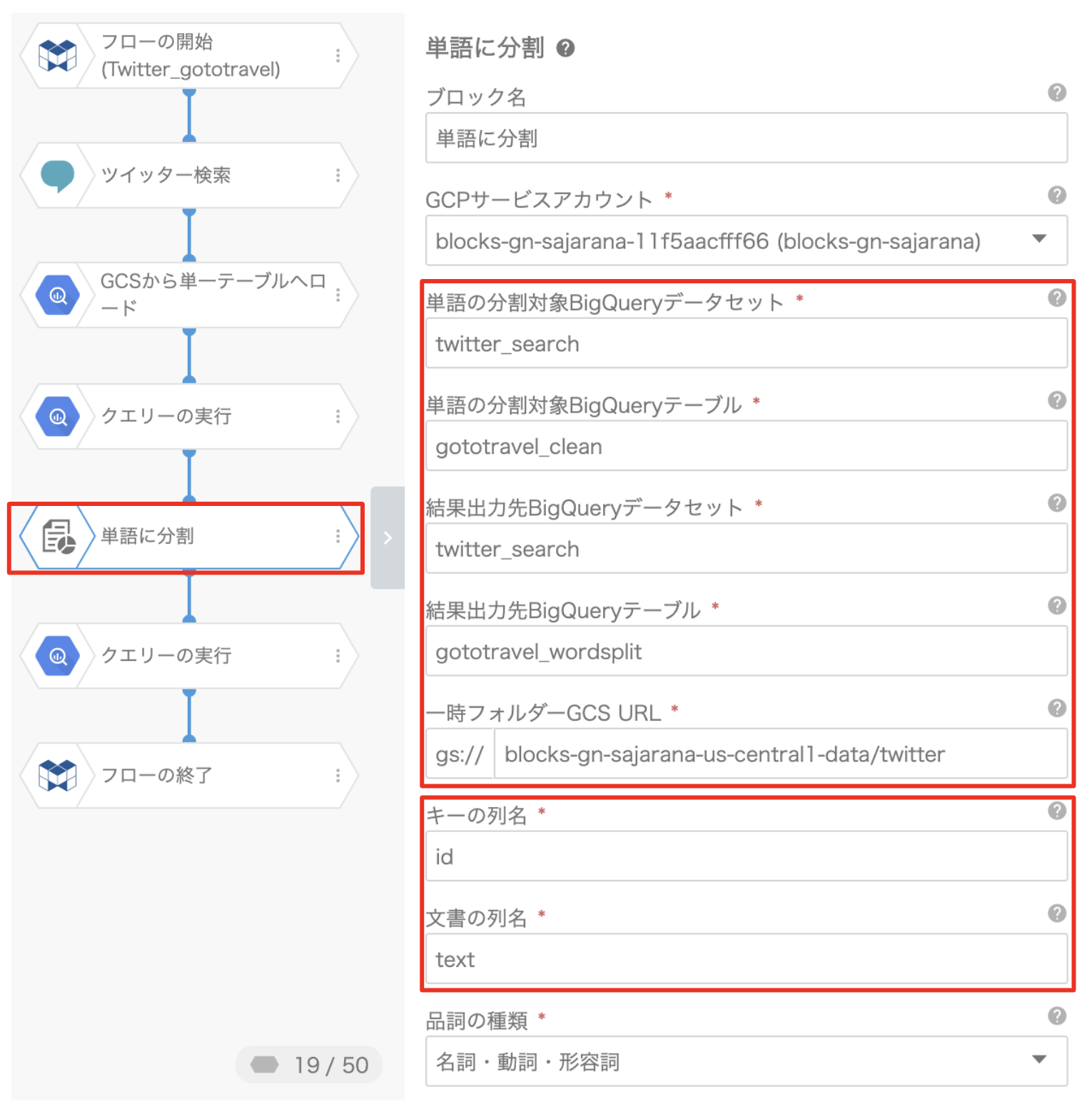
上記のように各項目を設定します。 取得したツイッターデータには、ツイートごとに一意になる「ID」が付与されており、ツイート自体には「text」というラベルが付いています。 キー列名の項目には「id」を使用し、文書の列名の項目は「text」を使用します。
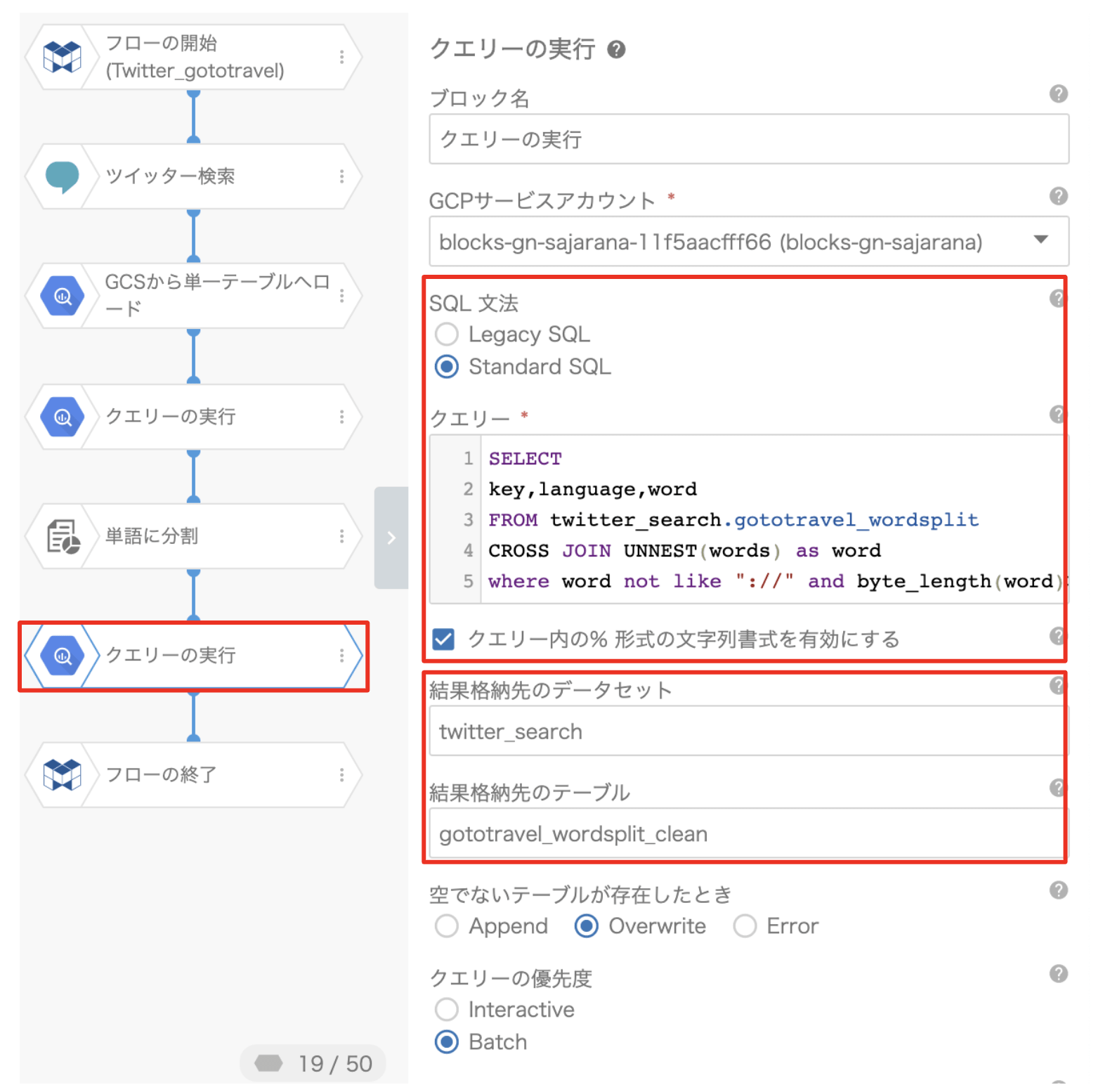
⑥「クエリーの実行」ブロック
単語分割した結果をTableauで表示できるように整形します。また、:// などの一般的なノイズや、分析に不要な単語ではない1バイト文字も除外するため、次のクエリーを登録します。
SELECT
key,language,word
FROM twitter_search.gototravel_wordsplit
CROSS JOIN UNNEST(words) as word
where word not like "://" and byte_length(word)>1
次に、結果格納先のデータセットと結果格納先のテーブルの項目を設定します。
フローを実行する
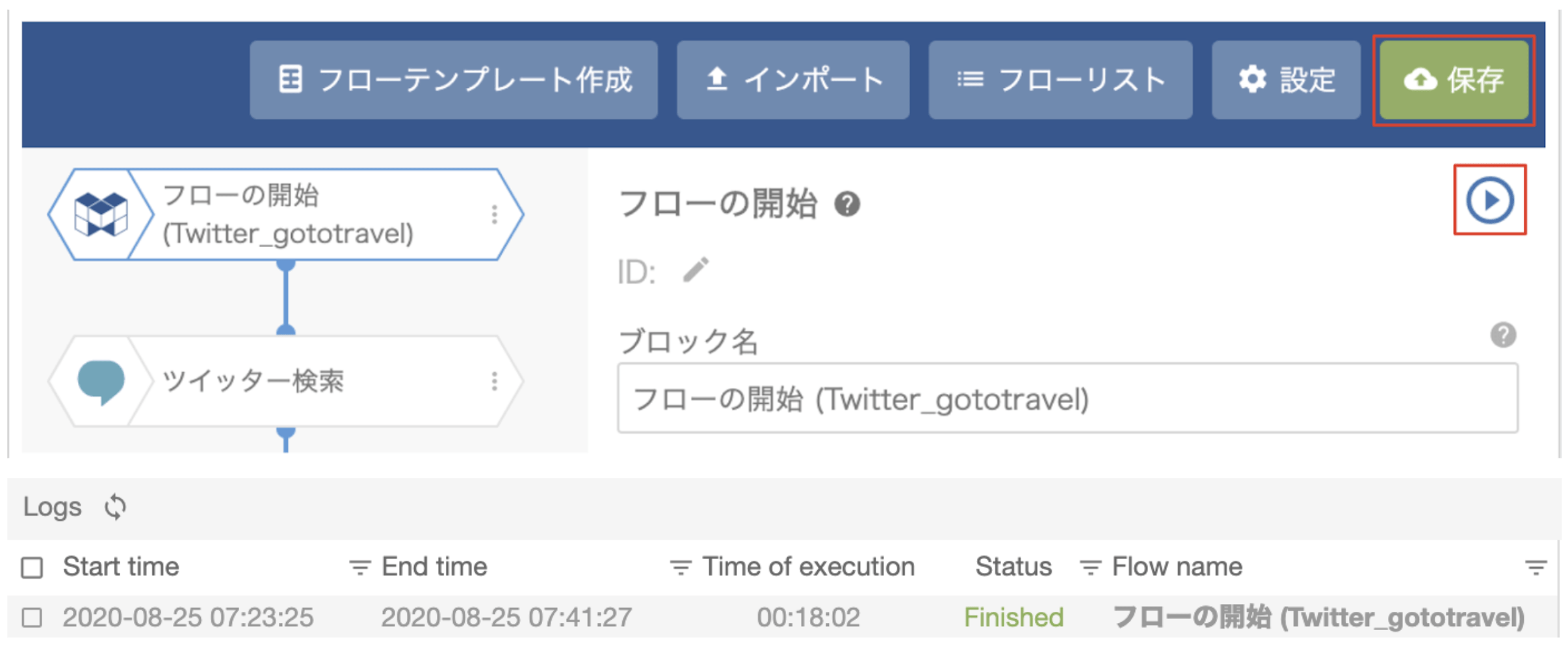
最後に、右上の保存ボタンをクリックして、「フローの開始」ブロックからフローを実行します(プロパティのplay_circle_outlineをクリック)。
ステップ 3 – Tableauでデータを可視化
解析したデータをTableauに連携して可視化しましょう!
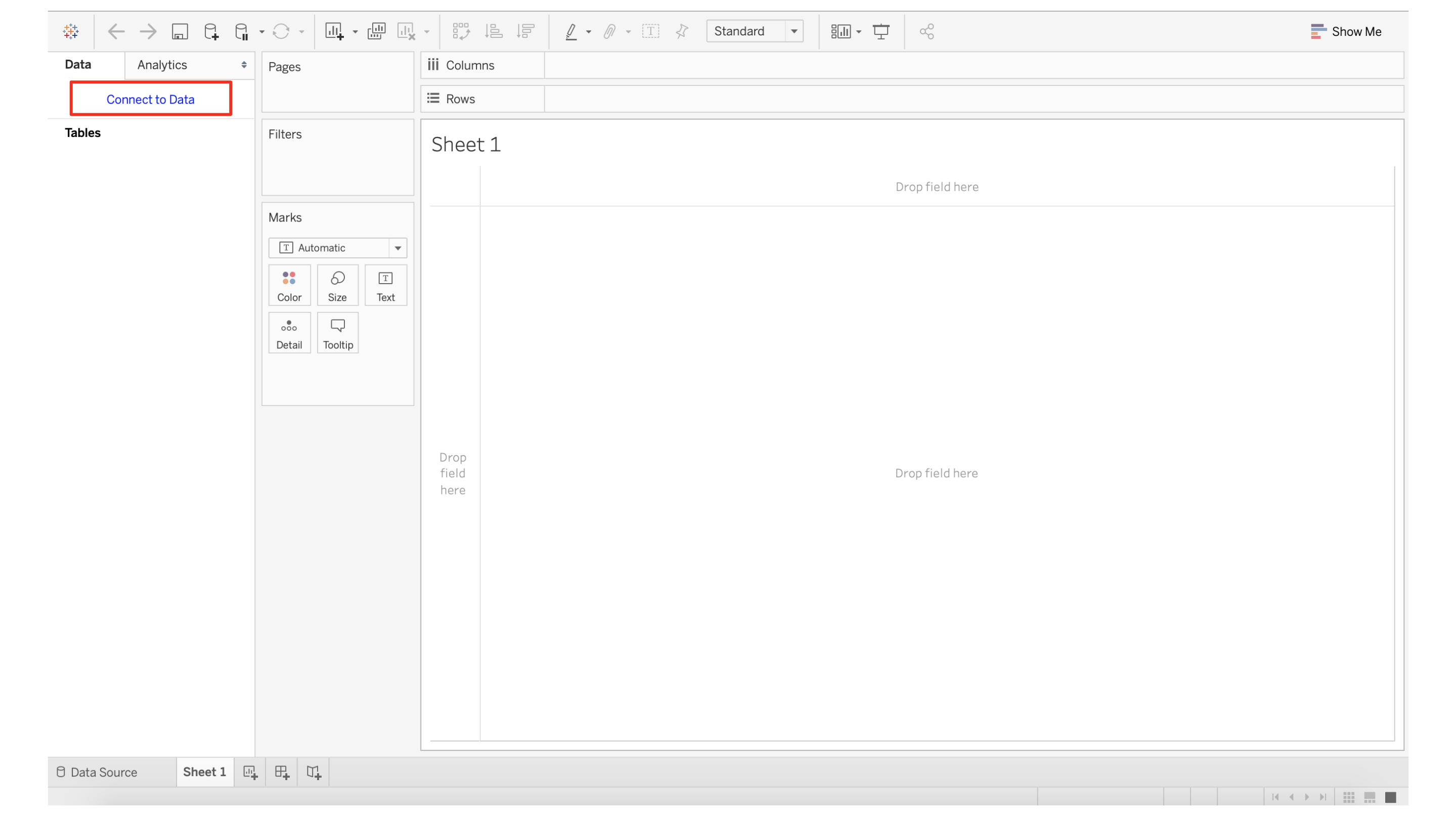
Tableauで、新しいワークブックを作成します。
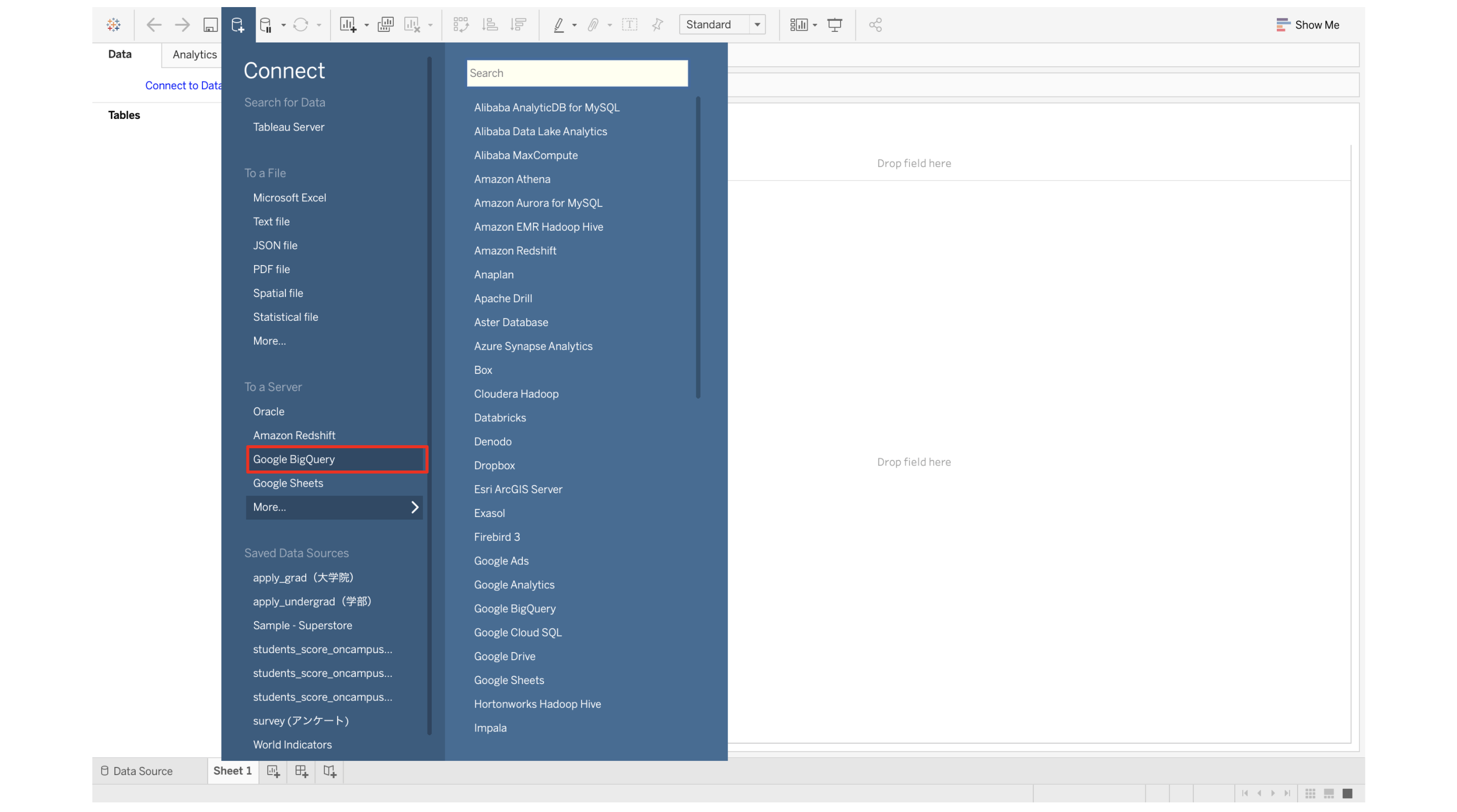
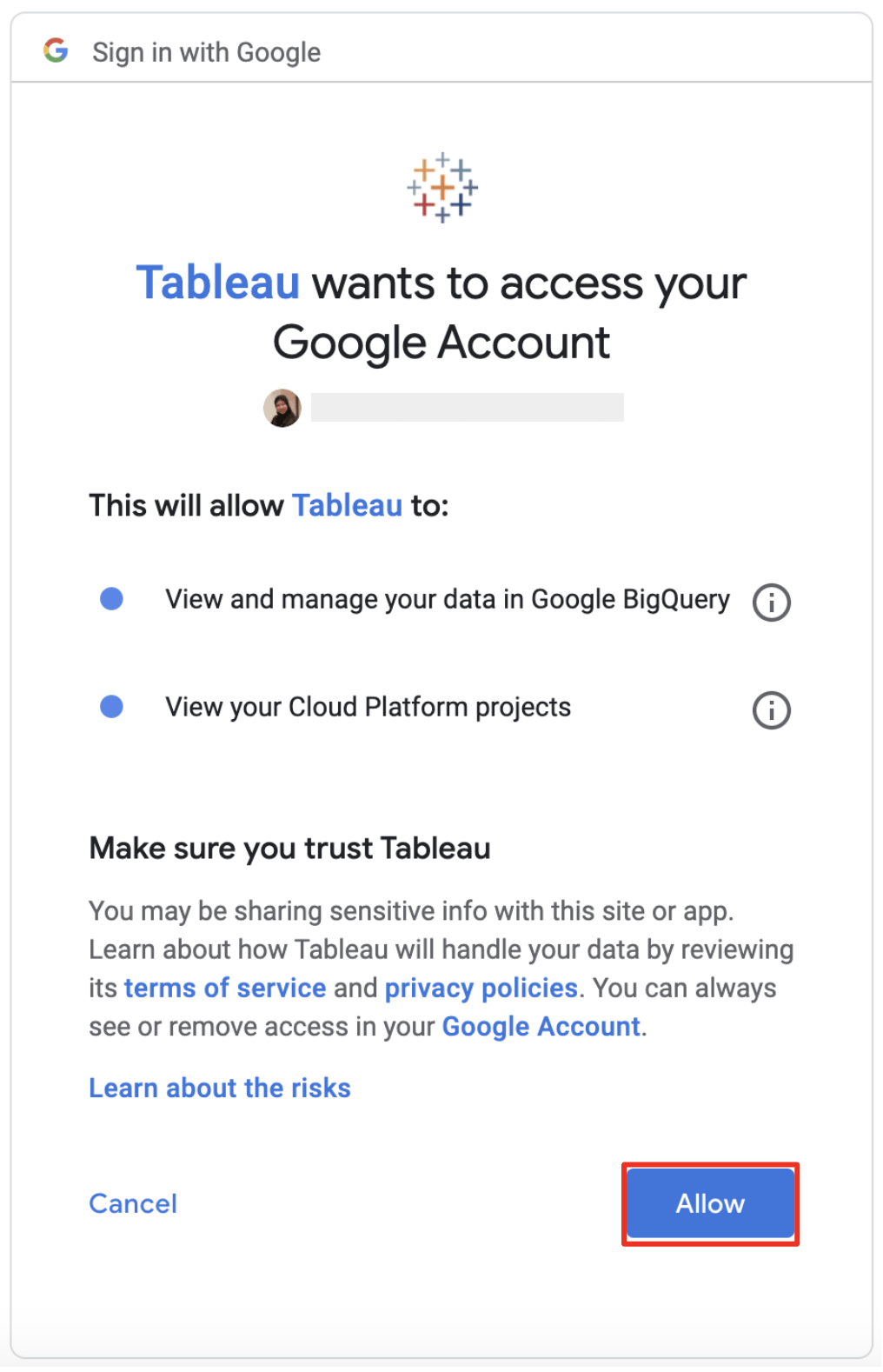
次に、BigQueryに接続するため、TableauにBigQueryへのアクセス許可を与えます。
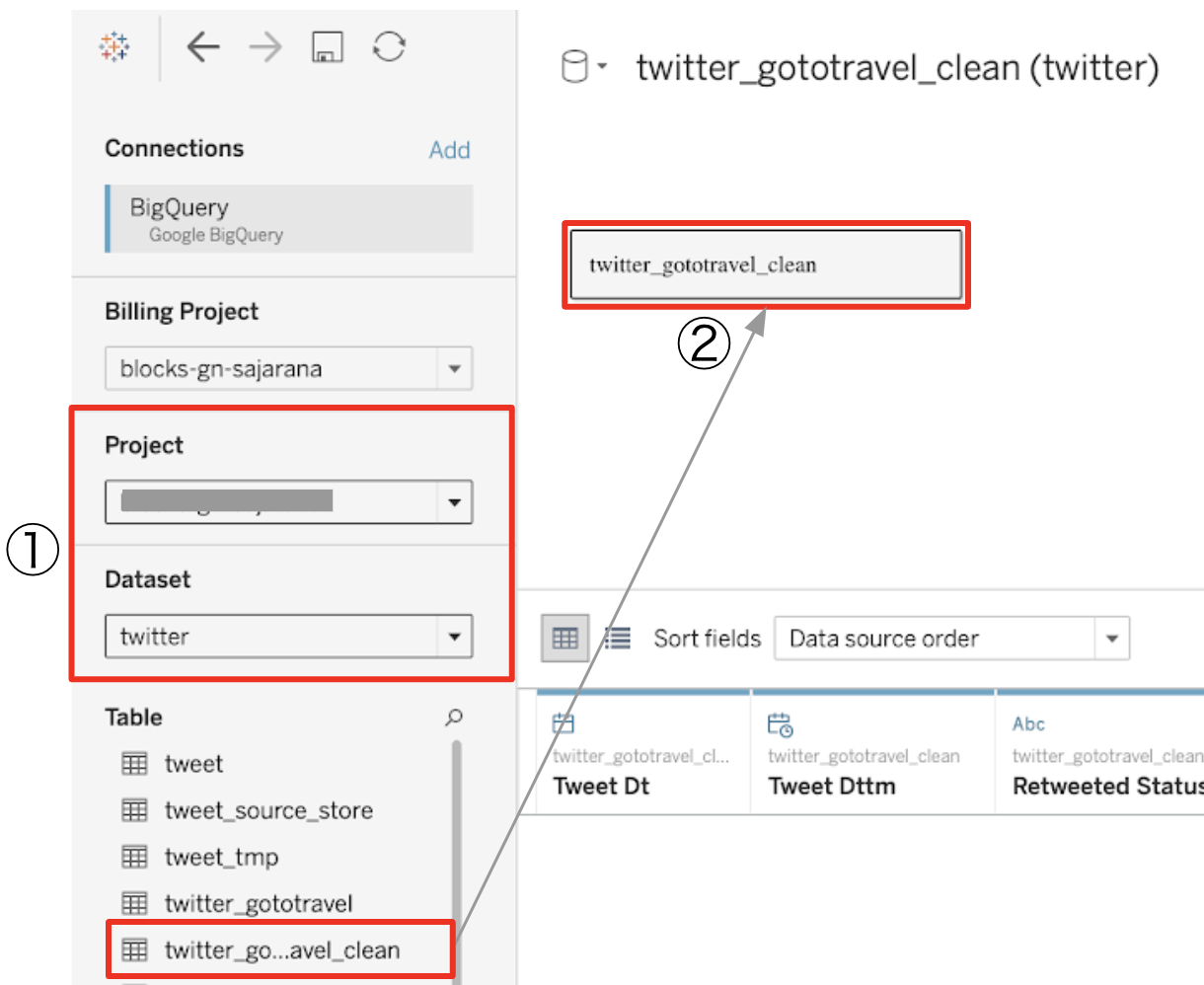
以下のように、プロジェクトとデータセットを選択します。テーブルをビューにドラッグ&ドロップします。
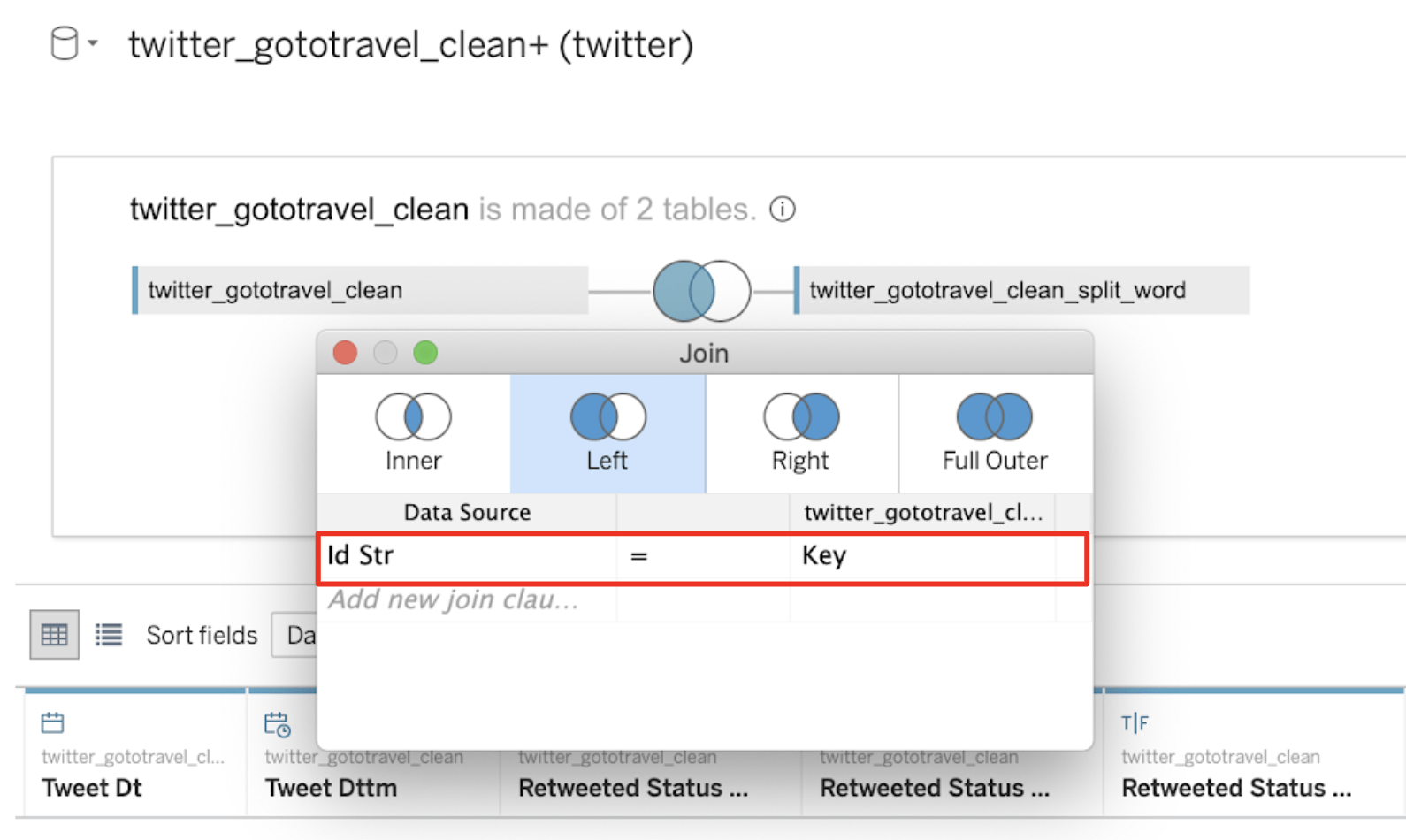
ツイート検索結果テーブルと単語分割したツイートテーブルを結合してみましょう。
その際、共通の列として、文字列型のツイートId Strを使用します。Id Str = Keyとなります。
いかがでしょうか。単語分割したデータを使用して、Tableauで素晴らしいワードクラウドを作成することができました。
このワードクラウドでは、GoToキャンペーンに関連するツイートの単語の中から、最も多くツイートされるキーワードが大きく、濃い色で表示されています。
では、フィルターを配置して、1000回を超えて出現する単語のみが表示に含まれるようにしてみましょう。
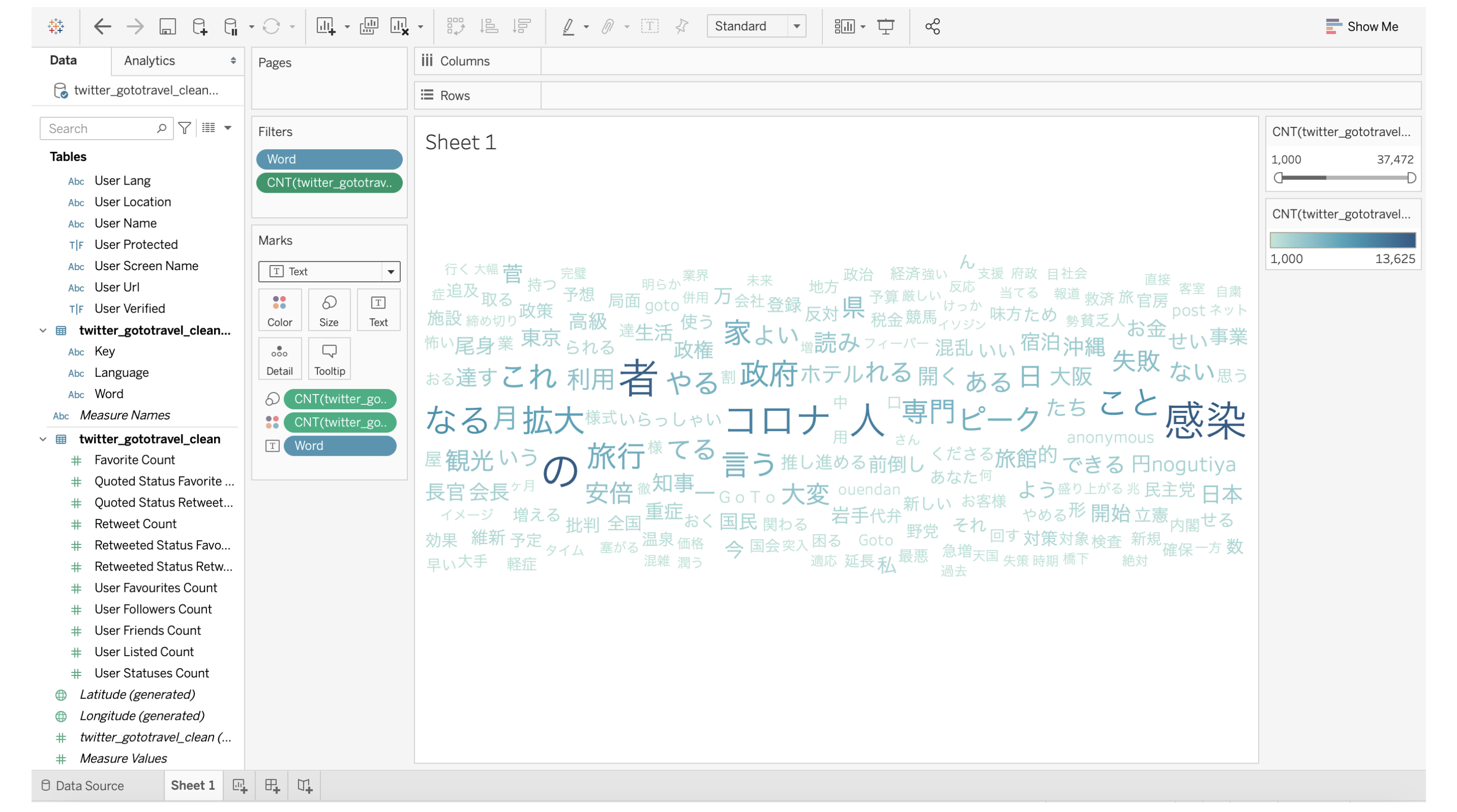
ツイート傾向の概要がわかりますね。続いて、それらの単語が含まれる実際のツイート内容を見てみたいと思います。
まず、ツイートとツイートの数の単純な可視化から始めます(これにはリツイートの数が含まれます)。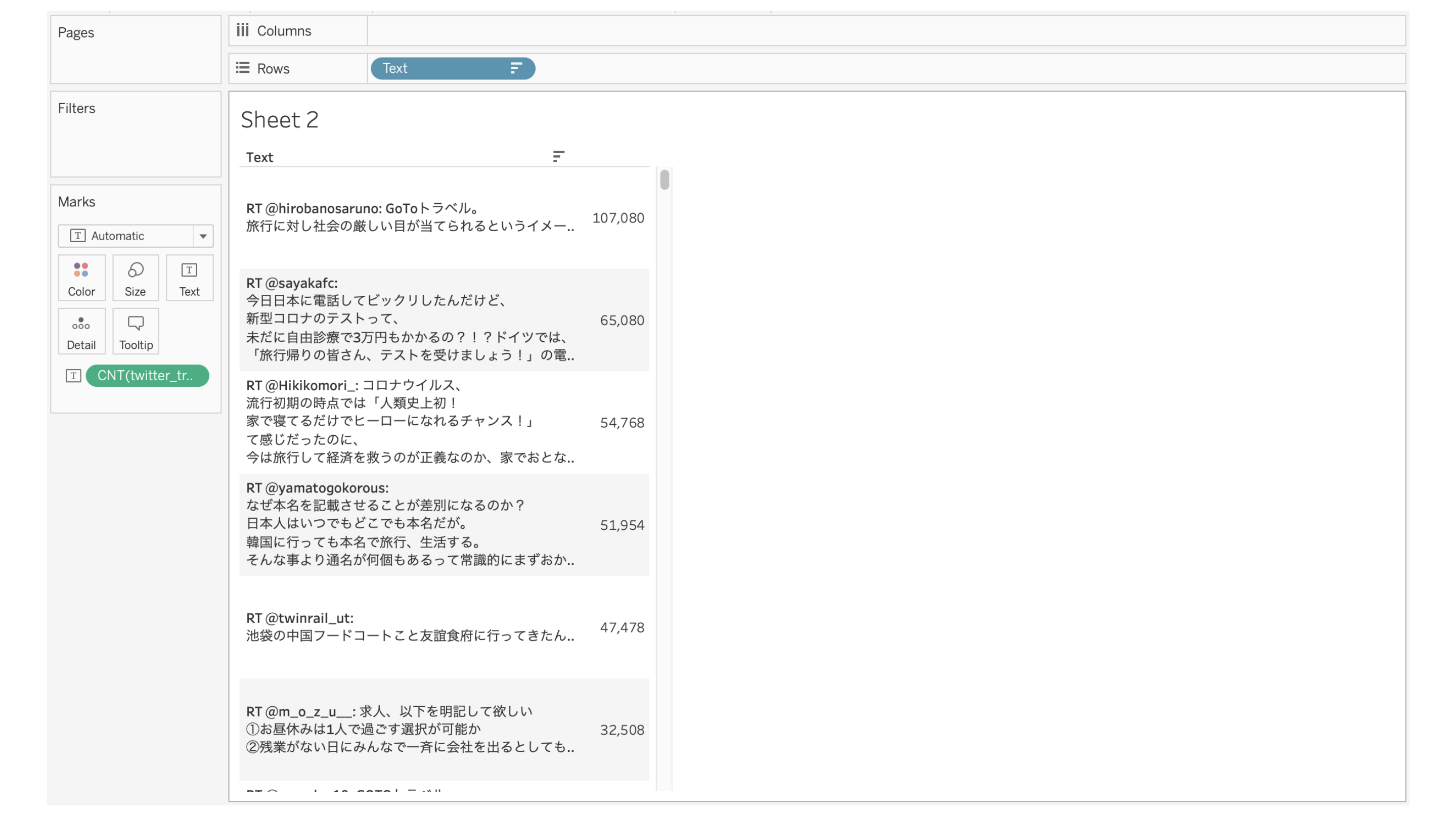
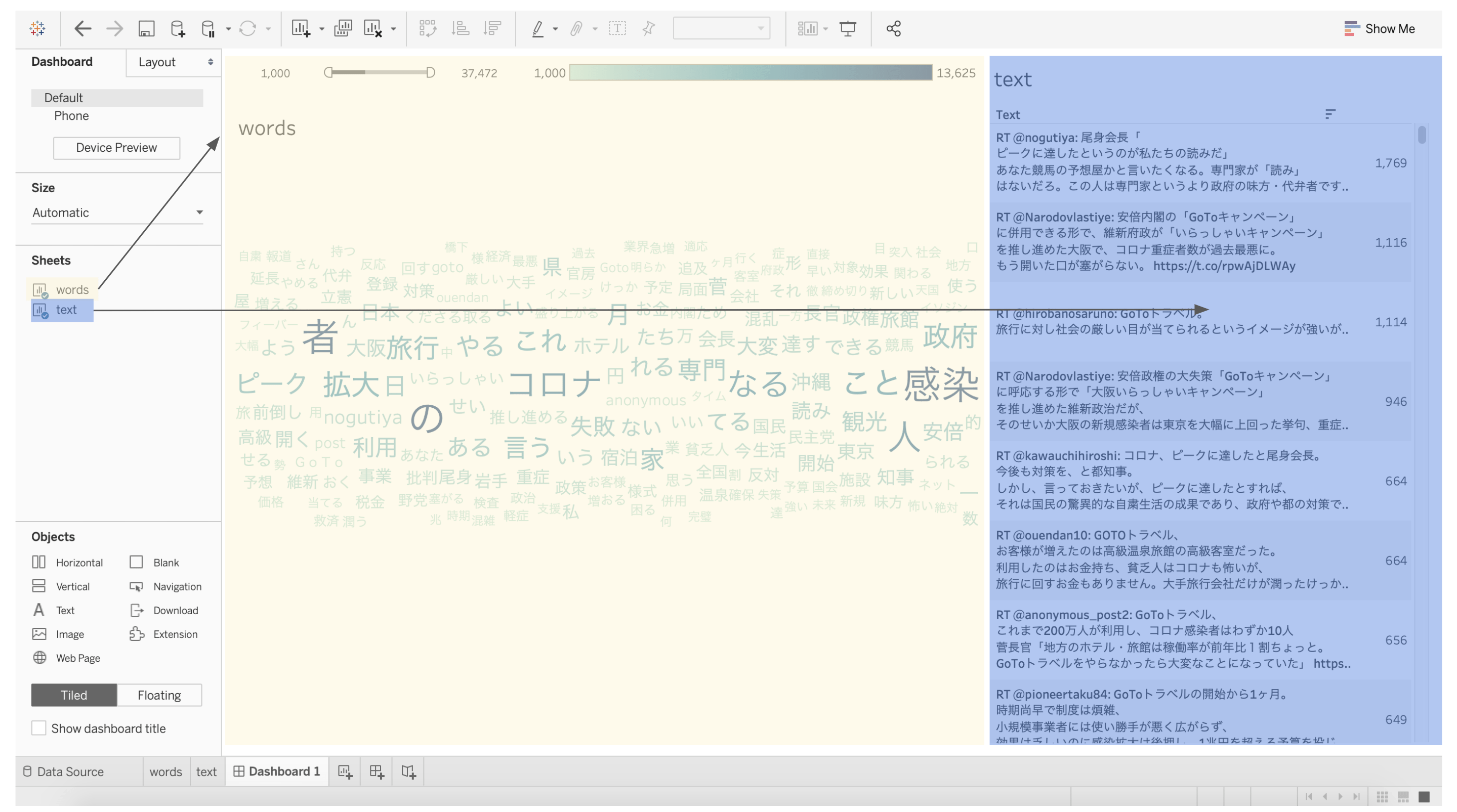
ここまでに作成したワードクラウドのシートとツイート内容のシートの2つをダッシュボードにまとめてみましょう!
シートをダッシュボードにドラッグ&ドロップするだけで、お好みに合わせて調整できます。
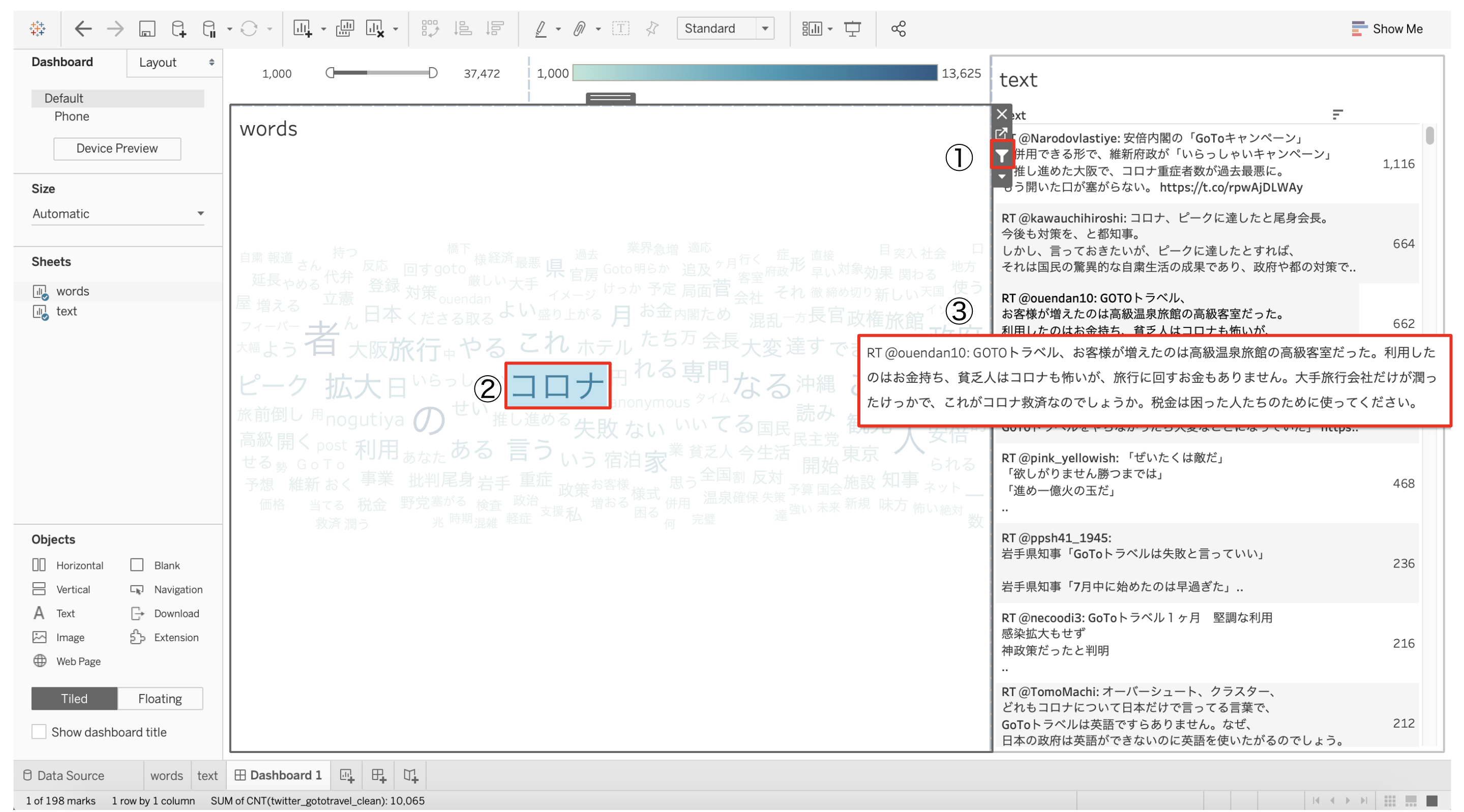
ここからは、フィルターアイコンを使ってみます。フィルターアイコンをクリックして、単語を選択すると、その単語を含む実際のツイートが表示されます。
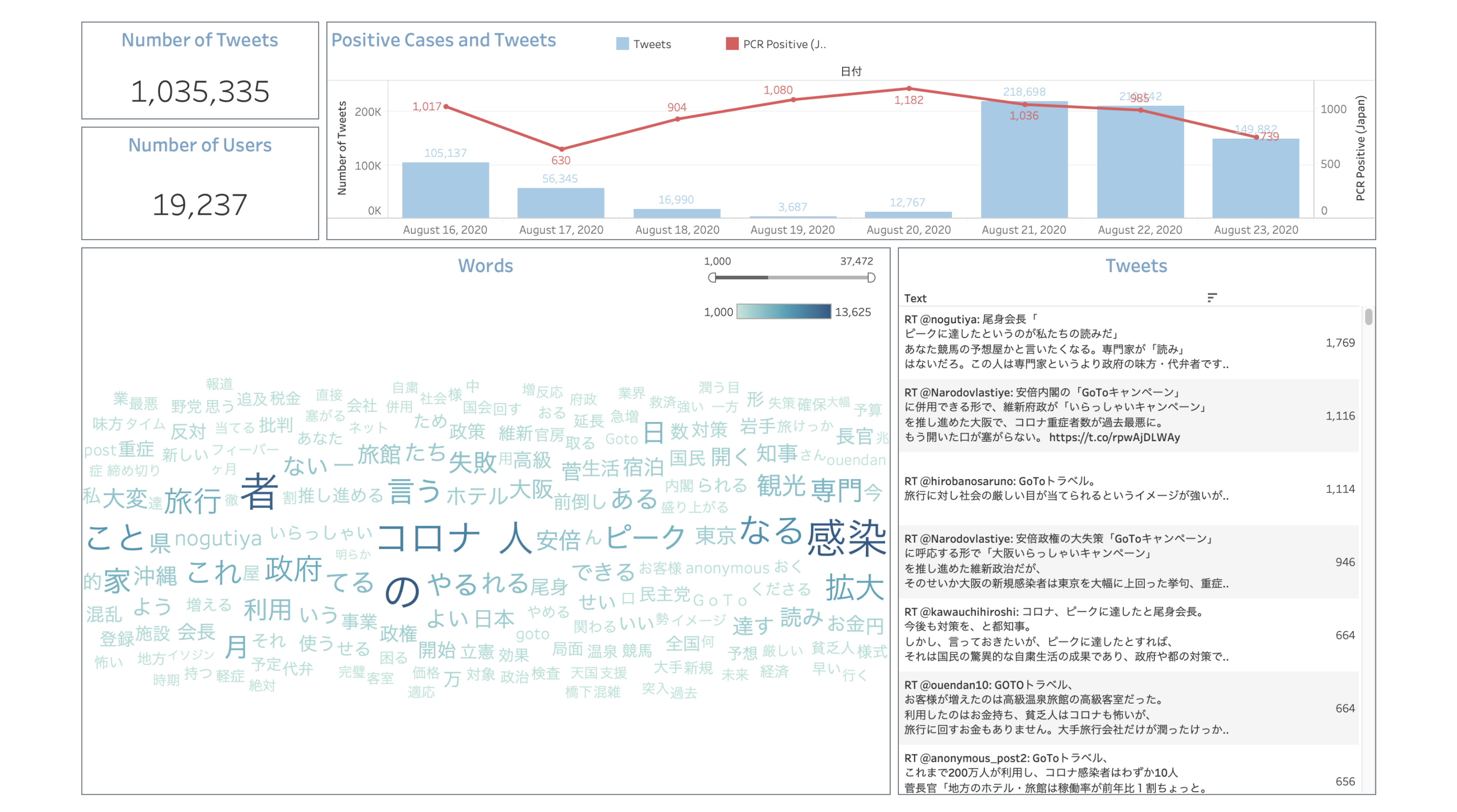
最後に、ツイートの期間、Covid-19関連データ(オープンデータ:https://www.mhlw.go.jp/stf/covid-19/open-data.html)、ツイートの総数などの基本的な情報を追加して一覧化もできます。
まとめ
MAGELLAN BLOCKSならTwitterのデータ取得や文書解析を簡単に実現できます。そこにTableauと組み合わせることで、文字の可視化から特定のトピックに対して人々の考えや感情の傾向を分析できました。
この記事では詳しく書いていませんが、今回の分析結果では、Covid-19の影響から人々はまだ旅行に消極的であることがわかりました。この状況がもう少し落ち着くのを待ってから、また旅に出たいですね!
※本ブログの内容や紹介するサービス・機能は、掲載時点の情報です。